Task Routing
Case work item buttons
| Icon | Description |
|---|---|
 | Accept case |
 | Reject case |
 | Pause case |
 | Resume case |
Case Channel Agent States
| Icon | Description |
|---|---|
 | Agent is in state «Not Ready» |
 | Agent is in state «Ready» |
 | Agent is busy (either in state «Reserved», «Active» or «Paused») |
Case States

| Icon | Description |
|---|---|
 | Case is ringing |
 | Case is active |
 | Case is on hold |
Case Routing Add-On
Accept offered case
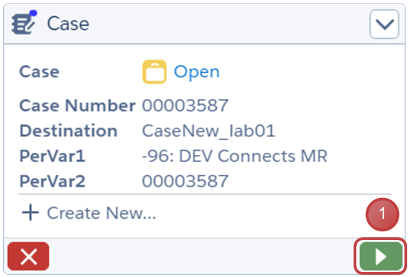
- Press the button to accept the case
Answer incoming case via notification message

- Click the notification to accept the case
Only for Firefox & Chrome
Pause / Resume case
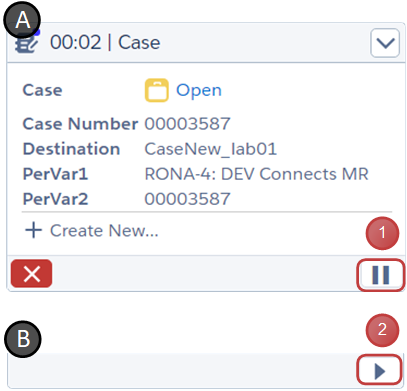
- Press the button to pause the case
- Press the button to resume the case
Reject offered case
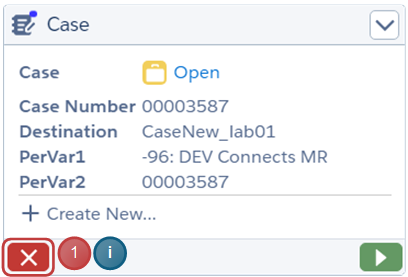
- Press the button to reject case
Reject offered case can be disabled by the administrator.
End case
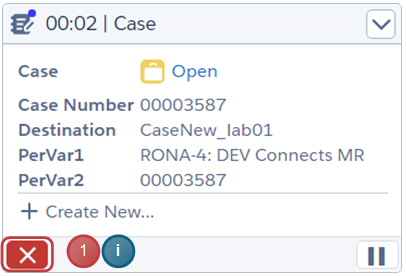
- Press the button to end the case
No Wrap-Up option is available at the moment
Create a record
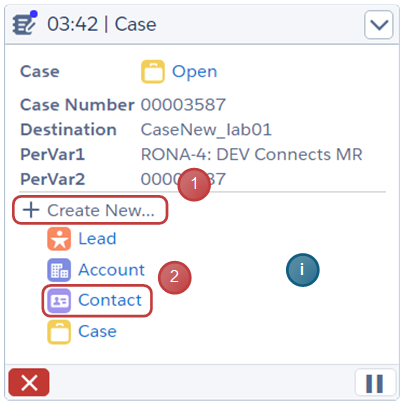
- Click the "Create New" dropdown menu
- Select the desired option
The list is populated with the options set up in the call center definition file.
Cisco Universal Queue - Case Handling
Accept offered case
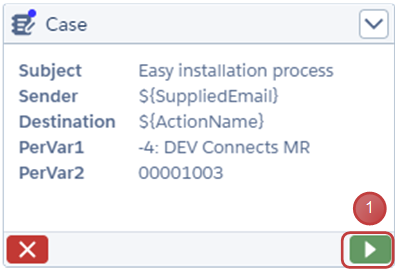
- Press the button to accept the case
Answer incoming case via notification message
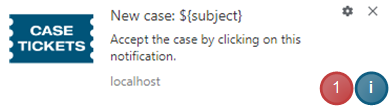
- Click the notification to accept the case
Only for Firefox & Chrome
Pause / Resume case
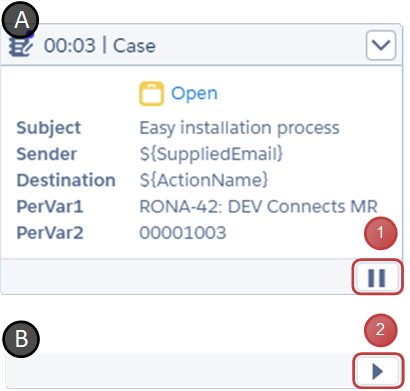
- Press the button to pause the case
- Press the button to resume the case
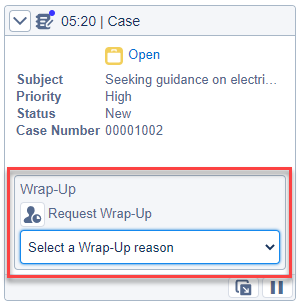
Set a Wrap-Up reason
If Wrap-Up reason has been enabled by the CRM Administrator, the Request Wrap-Up icon will display in the Work Item actions bar.
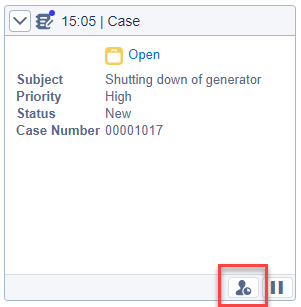
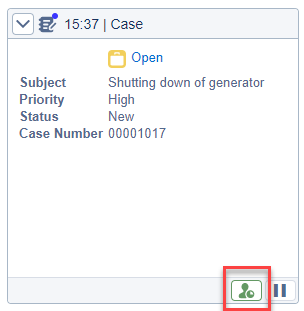
Once a Wrap-Up reason is selected, the icon turns green.
The selected Wrap-Up reason will persist in memory (e.g. after refreshing the gadget or the browser) until the Case is ended.
End case
Option 1
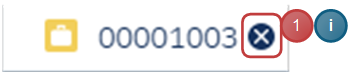
- At the top of the Salesforce window, close the Salesforce case tab
Option 2
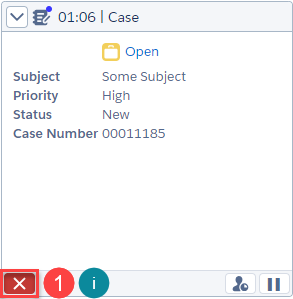
- Press the button to end the case
To be able to end the case from the softphone, it has to be enabled by the CRM Administrator.
Cisco Universal Queue - Chat Handling
Accept offered chat
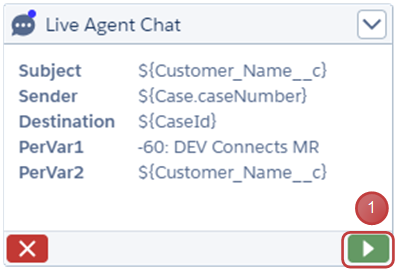
- Press the button to accept the chat
Answer chat via incoming notification message
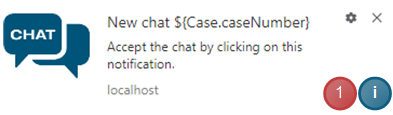
- Click the notification to accept the chat
Only for Firefox & Chrome
Pause / Resume chat
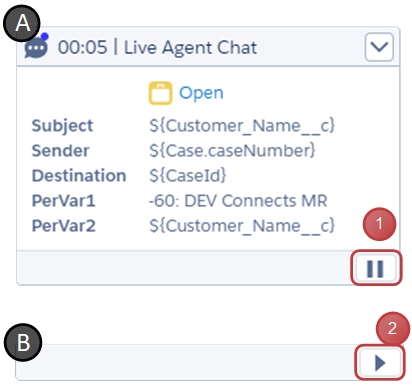
- Press on button to pause the chat
- Press on button to resume The chat
Set a Wrap-Up reason
If Wrap-Up reason has been enabled by the CRM Administrator, the Request Wrap-Up icon will display in the Work Item actions bar.
Once a Wrap-Up reason is selected, the icon turns green.
The selected Wrap-Up reason will persist in memory (e.g. after refreshing the gadget or the browser) until the Case is ended.
End chat
Option 1

- At the top of the Salesforce window, close the Salesforce chat tab
Option 2
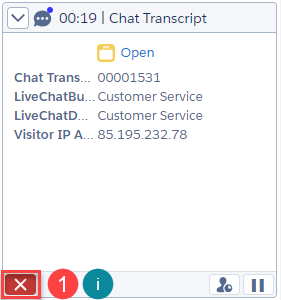
- Press the button to end the chat
To be able to end the chat from the softphone, it has to be enabled by the CRM Administrator.